Create Your First ERD
In this tutorial, you will design a simple e-commerce data model from scratch. By the end, you'll have learned all of ThinkERD's core workflows.
Estimated time: 15–20 minutes
This covers the entire process from project creation → entity design → relationship definition → SQL export.
The ERD We'll Build
┌──────────┐       ┌──────────┐       ┌──────────┐
│ Customer │──────<│  Order   │──────<│Order Item│
│          │       │          │       │          │
└──────────┘       └──────────┘       └──────────┘
                                           │
                                           │
                                      ┌──────────┐
                                      │ Product  │
                                      │          │
                                      └──────────┘
- Customer: E-commerce member information
- Order: Customer's order records
- Order Item: Individual product items within an order
- Product: Product information for sale
Step 1. Create a Project
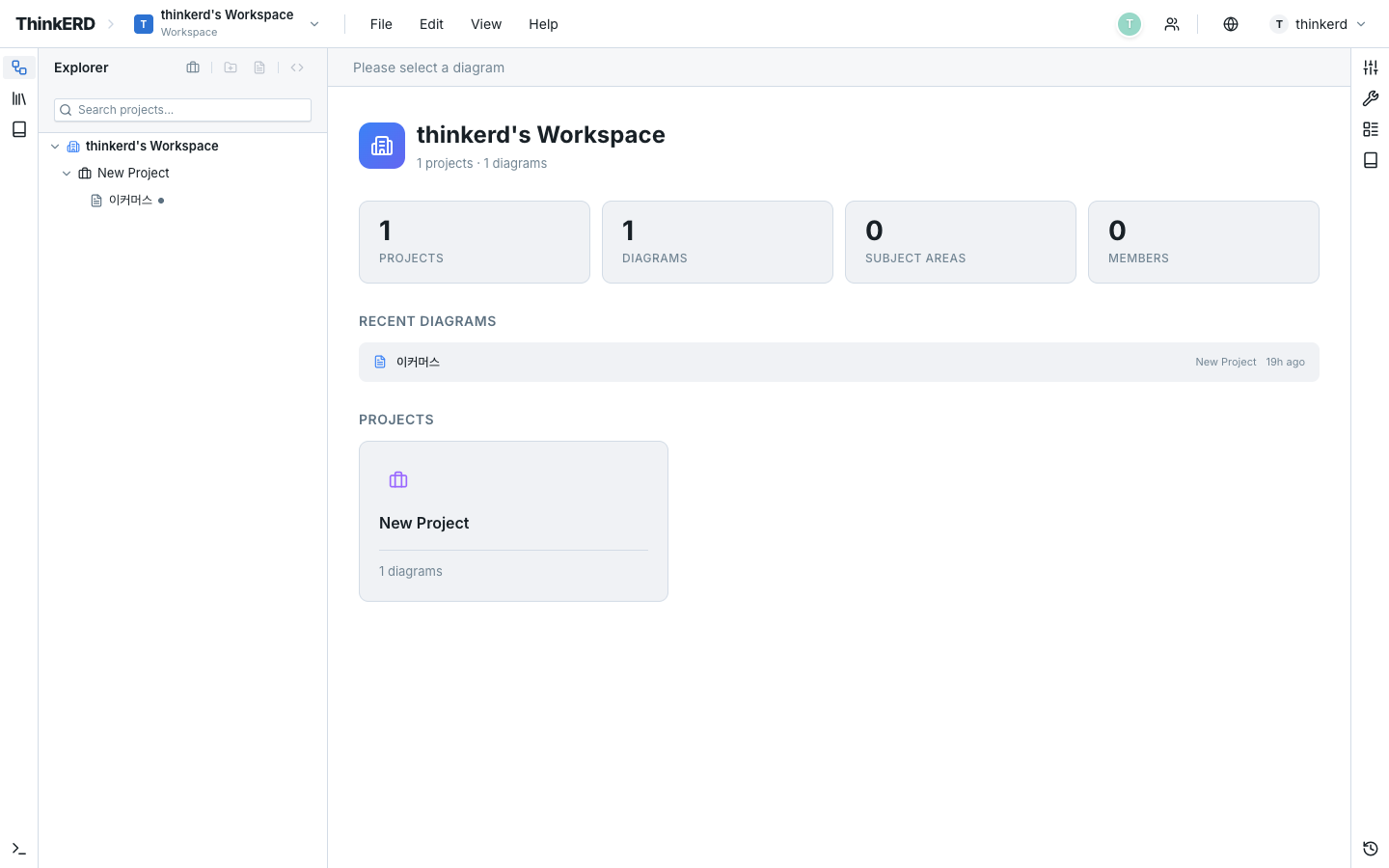
Enter Your Workspace
After logging in, your Workspace is displayed. A workspace is the top-level unit for managing projects.
Create a Project
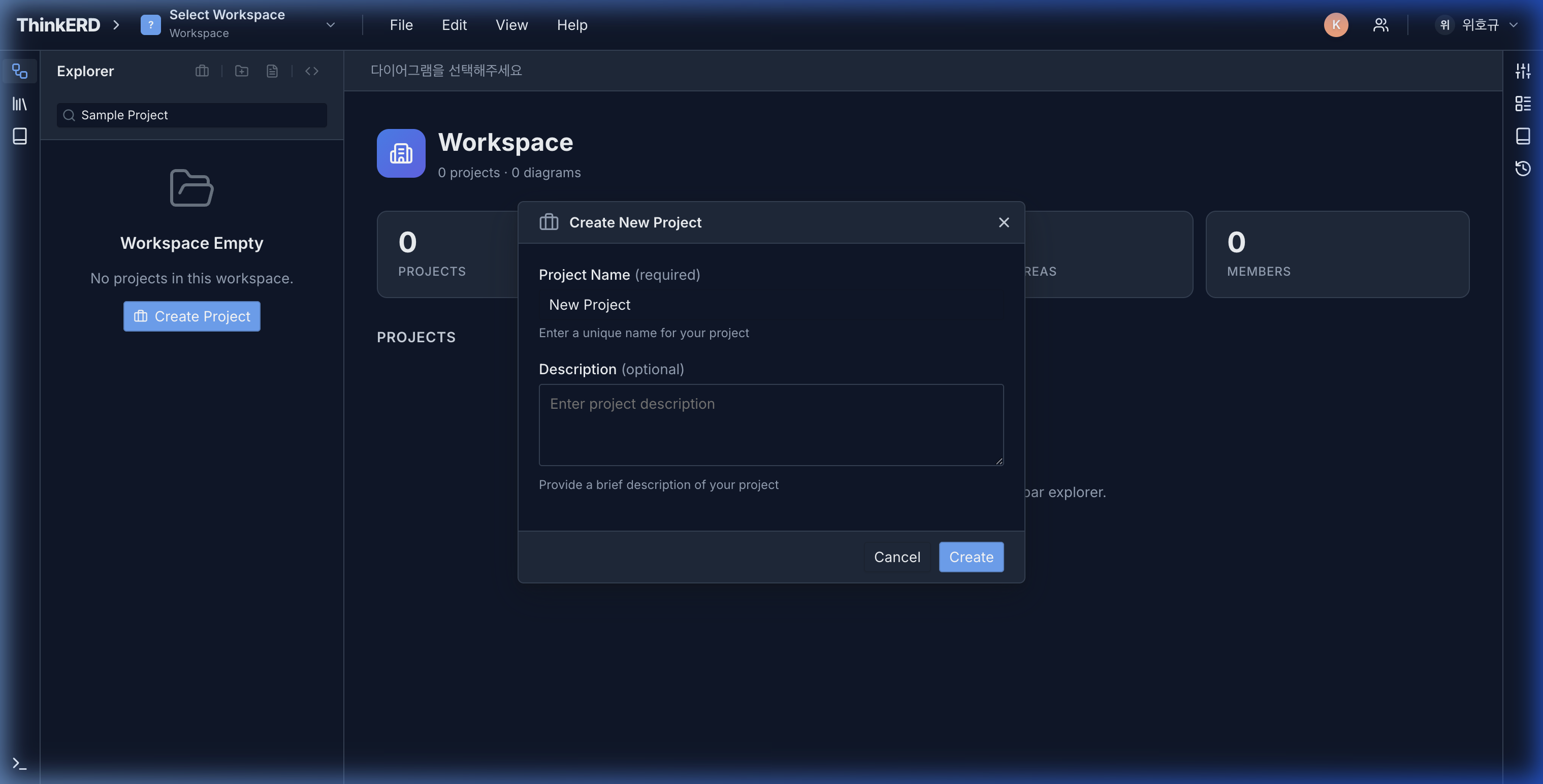
- Click the New Project button
- Enter the project name:
E-Commerce - Click Create
Open a Diagram
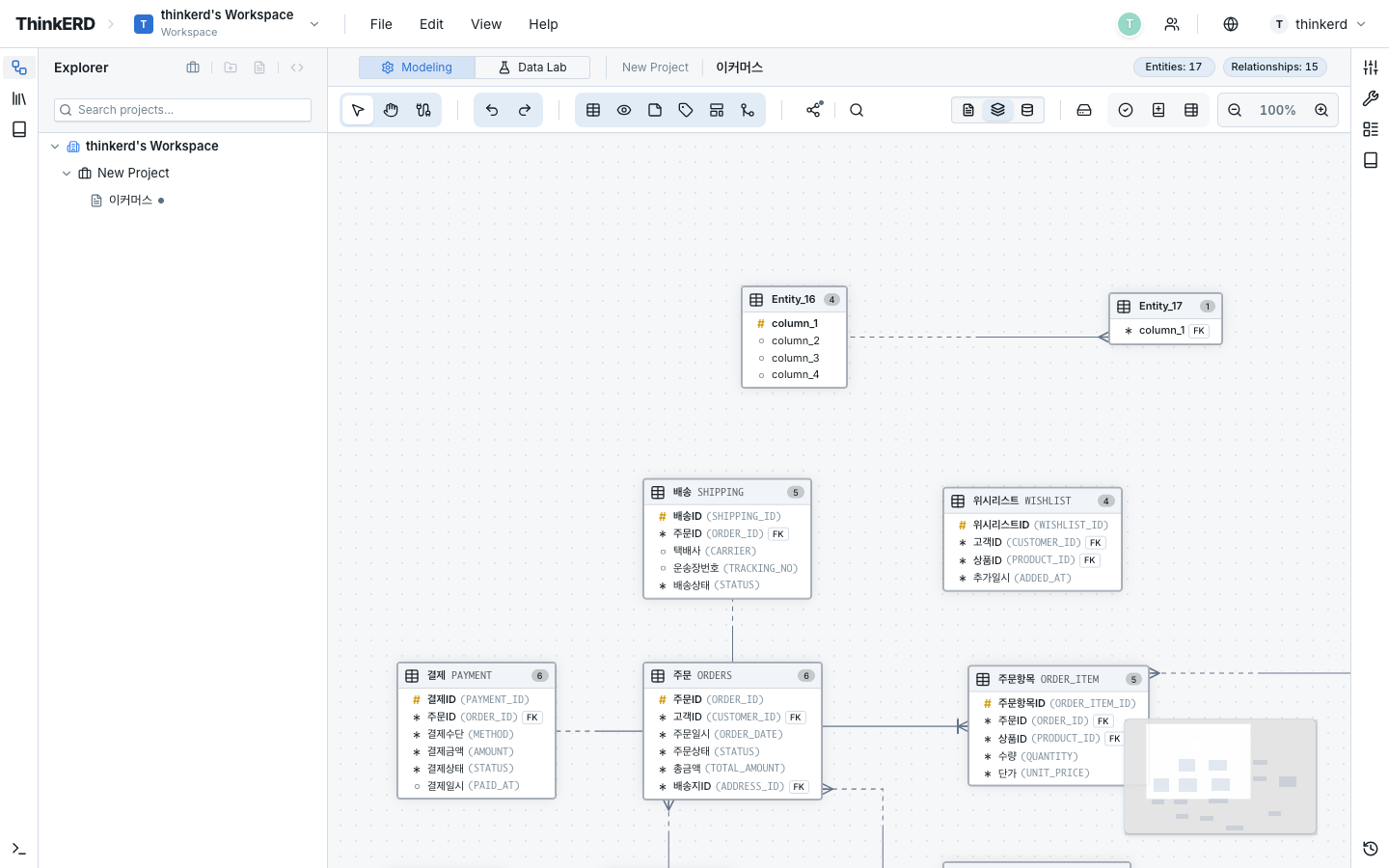
When you create a project, a default diagram is automatically generated. Click the diagram to open the ERD Canvas.
Step 2. Create Entities
First Entity: Customer
- Click the Add Entity button in the top toolbar
- A new entity appears on the canvas
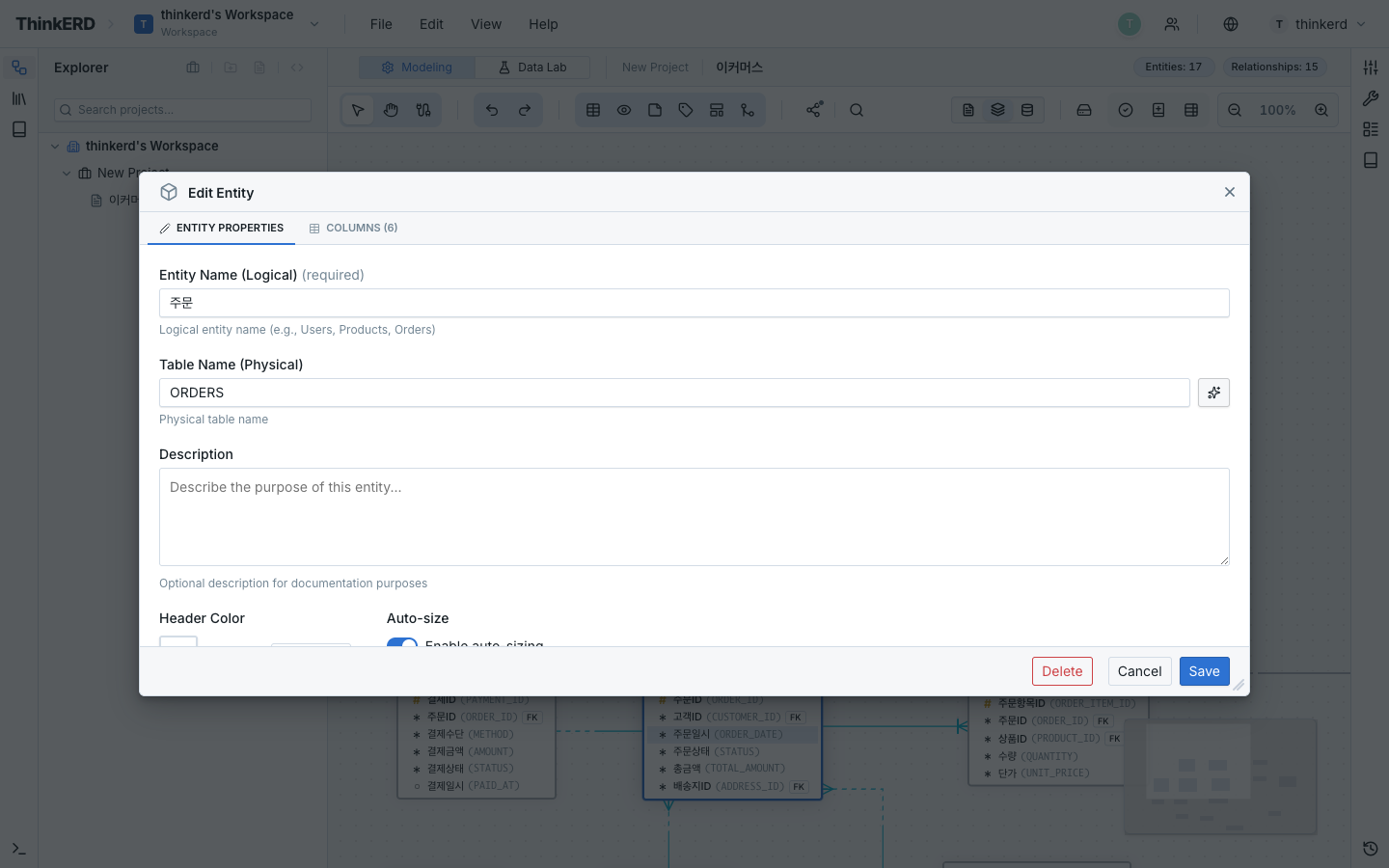
- Double-click to open the edit dialog
- Fill in the following:
| Property | Value |
|---|---|
| Logical Name | Customer |
| Physical Name | CUSTOMER |
- Add columns:
| Logical Name | Physical Name | Type | PK | NOT NULL |
|---|---|---|---|---|
Customer No | CUST_NO | VARCHAR(20) | ✅ | ✅ |
Customer Name | CUST_NM | VARCHAR(100) | ✅ | |
Email | EMAIL | VARCHAR(200) | ✅ | |
Phone | PHONE | VARCHAR(20) | ||
Registration Date | REG_DT | DATE | ✅ |
- Click Save
Auto-save
Changes are automatically saved when you close the dialog. There's no need to manually click a save button.
Create Remaining Entities
Create the remaining 3 entities using the same method:
| Logical Name | Physical Name | Type | PK | NOT NULL |
|---|---|---|---|---|
Order No | ORD_NO | VARCHAR(20) | ✅ | ✅ |
Order Date | ORD_DT | DATE | ✅ | |
Order Amount | ORD_AMT | NUMBER(18,2) | ✅ | |
Order Status | ORD_STAT | VARCHAR(10) | ✅ |
| Logical Name | Physical Name | Type | PK | NOT NULL |
|---|---|---|---|---|
Order Item Seq | ORD_DTL_SEQ | NUMBER(5) | ✅ | ✅ |
Quantity | QTY | NUMBER(10) | ✅ | |
Unit Price | UNIT_PRC | NUMBER(18,2) | ✅ |
| Logical Name | Physical Name | Type | PK | NOT NULL |
|---|---|---|---|---|
Product Code | PROD_CD | VARCHAR(20) | ✅ | ✅ |
Product Name | PROD_NM | VARCHAR(200) | ✅ | |
Price | PRC | NUMBER(18,2) | ✅ | |
Category | CATEGORY | VARCHAR(50) |
Step 3. Define Relationships
Now create relationships between entities.
Customer → Order (1:N, Non-identifying)
"One customer can place multiple orders"
- Drag the PK (Customer No) handle from the
Customerentity - Drop it onto the surface of the
Orderentity - FK column
Customer No (CUST_NO)is automatically added to theOrderentity - The relationship line is displayed with dashed line + Crow's Foot
Why non-identifying (dashed)? — The order does not include the customer number in its PK, so it can exist as an independent row.
Order → Order Item (1:N, Identifying)
"One order contains multiple item entries"
- Drag the PK handle from
Orderand connect it toOrder Item - FK column
Order No (ORD_NO)is added toOrder Itemand becomes part of the PK - The relationship line is displayed with solid line + Crow's Foot
Why identifying (solid)? — Order Item has a composite PK of (Order No, Order Item Seq). An order item cannot exist without an order.
Product → Order Item (1:N, Non-identifying)
"One product can appear in multiple order items"
- Drag the PK handle from
Productand connect it toOrder Item - FK column
Product Code (PROD_CD)is added toOrder Item
Step 4. Review the Model
Switch View Modes
Once the model is complete, review it from different perspectives.
Displays logical names. Ideal for business review.
Customer → Order → Order Item ← Product- Verify business terminology with stakeholders
Displays physical names. Ideal for development handoff.
CUSTOMER → ORD → ORD_DTL ← PRODUCT- Verify actual table/column names
Displays both logical and physical names simultaneously. Ideal for standard validation.
Customer(CUSTOMER),Customer No(CUST_NO)- Verify that mappings are correct
Arrange the Layout
- Drag entities into a logical order
- Use Smart Guides for alignment
- If needed, use Zones to define domain boundaries
Step 5. Export SQL
Extract DDL
- Go to Menu > File > Export as SQL
- Select the target DBMS (e.g., Oracle)
- Review the DDL preview
- Save as a file or copy to clipboard
Generated DDL (Oracle Example)
-- ===================================
-- E-Commerce ERD — DDL (Oracle)
-- ===================================

CREATE TABLE CUSTOMER (
    CUST_NO   VARCHAR2(20) NOT NULL,
    CUST_NM   VARCHAR2(100) NOT NULL,
    EMAIL     VARCHAR2(200) NOT NULL,
    PHONE     VARCHAR2(20),
    REG_DT    DATE NOT NULL,
    CONSTRAINT PK_CUSTOMER PRIMARY KEY (CUST_NO)
);

CREATE TABLE PRODUCT (
    PROD_CD   VARCHAR2(20) NOT NULL,
    PROD_NM   VARCHAR2(200) NOT NULL,
    PRC       NUMBER(18,2) NOT NULL,
    CATEGORY  VARCHAR2(50),
    CONSTRAINT PK_PRODUCT PRIMARY KEY (PROD_CD)
);

CREATE TABLE ORD (
    ORD_NO    VARCHAR2(20) NOT NULL,
    CUST_NO   VARCHAR2(20) NOT NULL,
    ORD_DT    DATE NOT NULL,
    ORD_AMT   NUMBER(18,2) NOT NULL,
    ORD_STAT  VARCHAR2(10) NOT NULL,
    CONSTRAINT PK_ORD PRIMARY KEY (ORD_NO),
    CONSTRAINT FK_ORD_CUST
      FOREIGN KEY (CUST_NO) REFERENCES CUSTOMER (CUST_NO)
);

CREATE TABLE ORD_DTL (
    ORD_NO        VARCHAR2(20) NOT NULL,
    ORD_DTL_SEQ   NUMBER(5) NOT NULL,
    PROD_CD       VARCHAR2(20) NOT NULL,
    QTY           NUMBER(10) NOT NULL,
    UNIT_PRC      NUMBER(18,2) NOT NULL,
    CONSTRAINT PK_ORD_DTL PRIMARY KEY (ORD_NO, ORD_DTL_SEQ),
    CONSTRAINT FK_ORD_DTL_ORD
      FOREIGN KEY (ORD_NO) REFERENCES ORD (ORD_NO),
    CONSTRAINT FK_ORD_DTL_PROD
      FOREIGN KEY (PROD_CD) REFERENCES PRODUCT (PROD_CD)
);
Tutorial Complete! 🎉
Congratulations! You've accomplished the following:
- Created a project and diagram
- Defined 4 entities with columns
- Set up identifying/non-identifying relationships
- Switched view modes (logical/physical/combined)
- Exported SQL DDL
Next Steps
| I want to... | Reference |
|---|---|
| Understand Barker's Notation in depth | Barker's Notation Guide |
| Add subtypes/exclusive arcs | Subtypes · Exclusive Arcs |
| Apply standard words/domains | Standard Studio |
| Collaborate with team members in real time | Start Collaborating |
| Review best practices | Data Modeling Best Practices |
| Analyze data with SQL | SQL Scratchpad |